PRACTICAL ADVERTISING GUIDE
What can an advertising agent do automatically?
An advertising agent can repeat an agreed reporting check and record a finding when the evidence meets your rule. In MRKTBL, a verified read-only Google campaign monitor is different from permission to change a budget or pause ads. Start with one account, one campaign, a complete reporting window and a clear next step.
Written by MRKTBL · Reviewed 19 November 2026
1. Find a strategy in the library
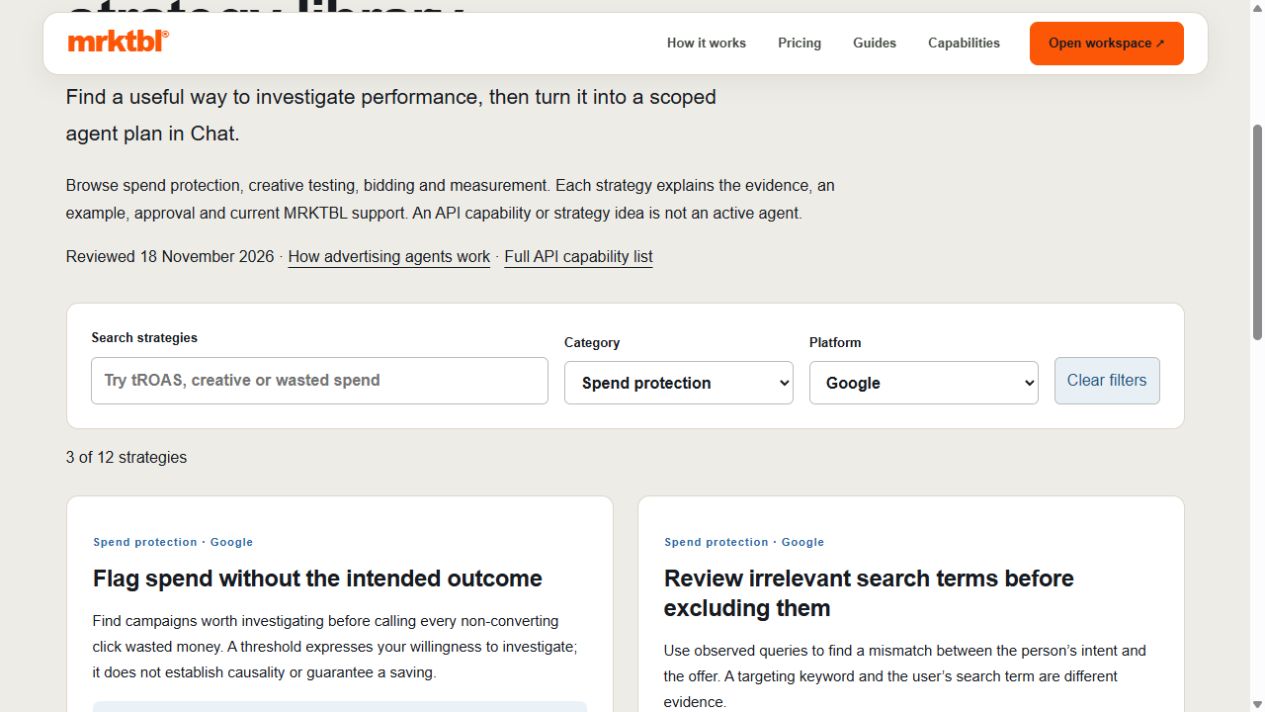
Open Optimization strategies from Guides or the link in Agents. Search for the business problem you want to investigate, then use category and platform filters to narrow the list. Search and filters work together; clear them if there are no matches. Start with one relevant strategy rather than treating every card as an agent you must enable. The first screenshot illustrates the public library controls, not a connected advertiser account.
2. Read the evidence and support limits
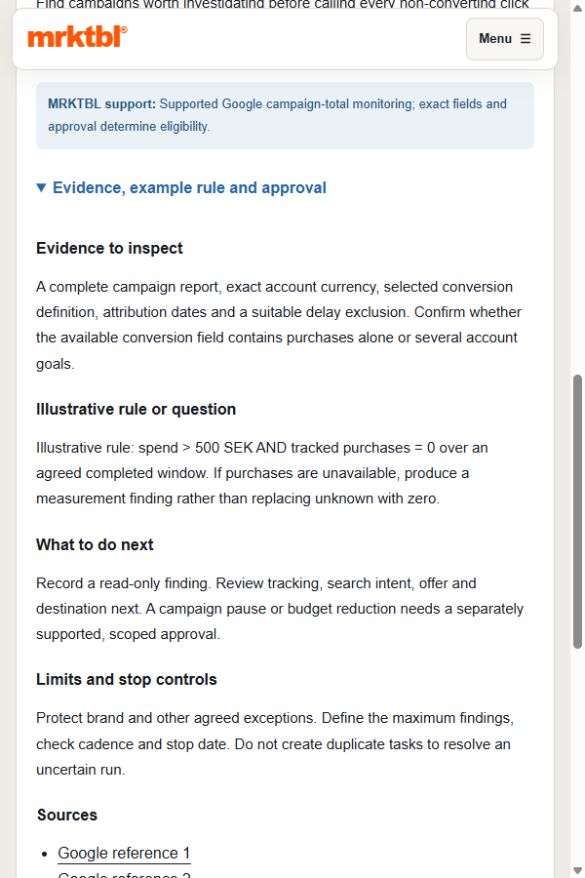
Open “Evidence, example rule and approval” on the selected card. Read the evidence to inspect, illustrative rule, next step, limits and sources, together with its MRKTBL support statement. A strategy can describe a useful recommendation without having an accepted recurring writer. Example thresholds are discussion inputs, not approved budgets or universal rules. The second screenshot shows public strategy information; it is not a scheduled-agent receipt or proof that an advertiser action ran.
3. Prepare an unsent brief in Chat
Choose “Prepare this strategy in Chat” to carry the selected strategy into the main Chat. Use the normal sign-in flow if needed, then choose your website project. The strategy preview does not select an advertiser account, change your project or fill and send the composer automatically. Review the brief and choose “Add brief to Chat” when ready. If a message already exists, “Append brief to my draft” keeps it and adds the strategy below; Cancel leaves it unchanged. “Remove added brief” restores the earlier draft only while the composer still exactly matches the inserted result, so later edits are not deleted. Send the message yourself when you want to continue; preparing it grants no approval for AI usage, generation costs, publishing, email or a schedule. These Chat steps are described in text only: the screenshots illustrate the public library, not this signed-in workflow.
Start with a job, not unlimited account access
Ask for a report, a recurring finding or a proposed optimization. These are different jobs. A reporting agent reads a defined source and describes returned results. A monitoring rule checks an agreed condition. An optimization writer changes a supported account setting only within its separate approved authority. A saved rule draft and an installed API reader do not establish that a recurring writer is ready for your account.
Choose the exact campaign and evidence window
Select the website project, advertising platform, connected account and observed campaign. For a first read-only check, use the previous seven complete account-local days rather than today’s partial figures. Review the currency, timezone and conversion goal. Seven days is an example window, not proof that delayed conversions have finished arriving; extend the window or exclude recent days when the conversion lag requires it.
Write a rule that a report can actually answer
An illustrative finding is: spend exceeds 500 SEK and the complete report shows zero tracked purchases. Confirm that the returned conversion field represents those purchases before using the rule; an account’s generic conversions may combine signups, engagement and sales. The current recurring campaign-total monitor uses AND conditions with supported spend, clicks, impressions, conversions, CPA and CTR. Specialist breakdowns, search-term exclusions and arbitrary OR rules are separate from this verified monitor. Missing observations remain unknown. An unavailable purchase field, incomplete pages or a failed read must not become a zero-purchase finding.
Preview a finding before approving its schedule
Review the exact campaign, conditions, reporting window and intended result. Choose a read-only finding when you want to inspect evidence before acting. Approve the supported task and schedule in Chat, then find it under Agents. The verified Google monitor records findings without changing ads or sending an email. Email delivery, where available, is a separate workflow with its own delivery settings and opt-in; a finding does not automatically subscribe anyone to email.
Understand when scheduled work runs
Cloudflare sends scheduler checks to MRKTBL. A check is an opportunity to run work that is due, still enabled and within the approved account and task scope; it is not a guarantee of an exact delivery minute. MRKTBL records a run receipt and uses duplicate-run protection so repeated scheduler requests do not repeat the same scheduled work. Check the receipt’s reporting window, source, status and finding, rather than assuming an enabled row proves a successful run.
Keep automatic changes separate from monitoring
A read-only finding can prompt you to inspect the campaign, conversion setup, search terms or landing page. It does not authorize a pause, budget change or keyword edit. A recurring optimization change needs a separately supported writer, eligible entity, exact rule, spending or reduction limits, and verified scheduler execution and provider readback. Some platform actions have review adapters or draft support without production-verified recurring execution. Keep those rules as plans until the exact account and action are accepted; do not assume parity across Google, Meta, TikTok, Snapchat and ChatGPT Ads.
Review receipts, stop future runs and reconcile uncertainty
Under Agents, inspect the task’s current scope, next check and saved run evidence. Stop or revoke the approved task when you no longer want future runs. That does not undo work a provider has already accepted. For an uncertain request, check the saved receipt and reconcile its outcome before retrying; do not create a second task to make an ambiguous result disappear. A provider change is verified through its execution receipt and readback, while a reporting finding is evidence of a read and evaluation only.
TRY THE CONVERSATION
Start with a specific question.
Create a read-only Google campaign monitor for my selected account and campaign. Check the previous seven complete account-local days daily. Help me define a spend threshold and confirm which conversion field represents purchases. Preview the exact rule and finding before I approve the schedule. Do not change ads or send email.Discuss your plan in MRKTBL →
Available actions depend on current account access and verified support. Nothing is published by opening the workspace.
Common questions
Can I create and manage the task through Chat?
Describe the job in Chat, answer the account and campaign questions, review the exact supported task, and approve its schedule. Manage the resulting task under Agents and inspect its saved receipts. If execution is unsupported, keep a draft rather than treating it as an active schedule.
Does a zero-conversion report prove that the campaign wasted money?
No. First verify complete coverage, the intended conversion goal, tracking health and conversion delay. Zero tracked purchases describes the selected report; it does not prove there were no sales or establish whether the advertising caused an outcome.
Can every platform run the same automatic optimization?
No. Reporting access, campaign-total monitoring and advertiser changes have different support and acceptance requirements. Consult the capability list for the exact function, and distinguish installed or mock-tested adapters from production-verified scheduled execution.
Does saving a draft activate an agent or spend advertising money?
A saved disabled draft does not activate scheduled execution or publish ads. Enabled tasks follow the applicable plan limits. Advertising spend, AI usage and any separately approved changes remain distinct; check Account & usage and the exact task review.